
How to Set Up a Pomodoro Timer in OBS
Last updated: May 2026 · 8 min read
If you stream coding sessions, art, or anything that benefits from focused work blocks, adding a Pomodoro timer to your OBS scene is one of the best things you can do for your stream. Your viewers get a visual cue for when you're deep in focus mode versus when you're on break — and you get a gentle nudge to stay on track.
Focusdoro was built specifically for streamers. You get a live, animated timer overlay that updates in real time inside OBS, without any extra software or OBS plugins. All you need is a browser source.
This guide walks you through the full setup from scratch. Even if you've never touched OBS before, you'll have your overlay running in under five minutes.
What You'll Need
Before you start, make sure you have:
- OBS Studio — the free, open-source streaming software. Download it from obsproject.com if you haven't already.
- A Focusdoro account — it's free to sign up. You'll only need a Google account.
- A web browser — Chrome, Firefox, or any modern browser works fine.
That's it. No plugins, no extensions, no paid software required.
Step 1: Create Your Focusdoro Account
Head to focusdoro.app in your browser. You'll land on the main timer page.
Click Sign in in the top-right corner of the header. You'll be taken to the sign-in page where you can authenticate with your Google account. The entire process takes about ten seconds — just pick your Google account and you're in.
Once signed in, you'll be back on the timer page. Your account is created automatically on first sign-in, and your overlay is ready to use immediately.
Step 2: Copy Your Overlay URL
With your account created, look at the header at the top of the page. You'll see a button labelled Overlay URL with a copy icon next to it.
Click that button. It copies your personal overlay URL to your clipboard.
Your overlay URL looks something like https://focusdoro.app/overlay/your-unique-token. This URL points to a transparent page that shows only your timer — nothing else. When you paste it into OBS as a browser source, OBS renders that page directly in your scene.
The overlay updates in real time as you control the timer on focusdoro.app. Start a session on your browser, and the overlay in OBS starts counting down automatically.
Step 3: Add a Browser Source in OBS
Now switch over to OBS Studio. This is where you connect your overlay URL to your stream scene.
- Open the scene you want to add the timer to. In the Scenes panel on the bottom-left, click the scene you stream with — for example, "Coding Stream" or "Main Scene".
- Add a new source. In the Sources panel (just to the right of Scenes), click the + button at the bottom.
- Select "Browser" from the dropdown. Scroll down the list until you see Browser, then click it.
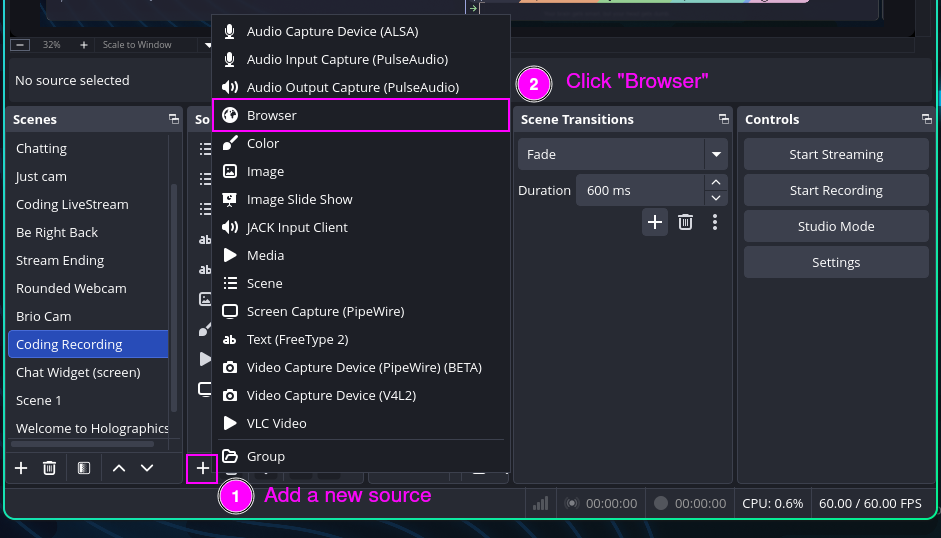
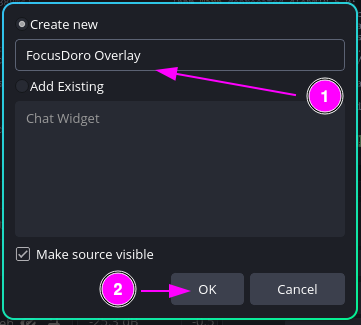
- Name the source. A dialog box appears asking for a name. Type something like FocusDoro Overlay, then click OK.
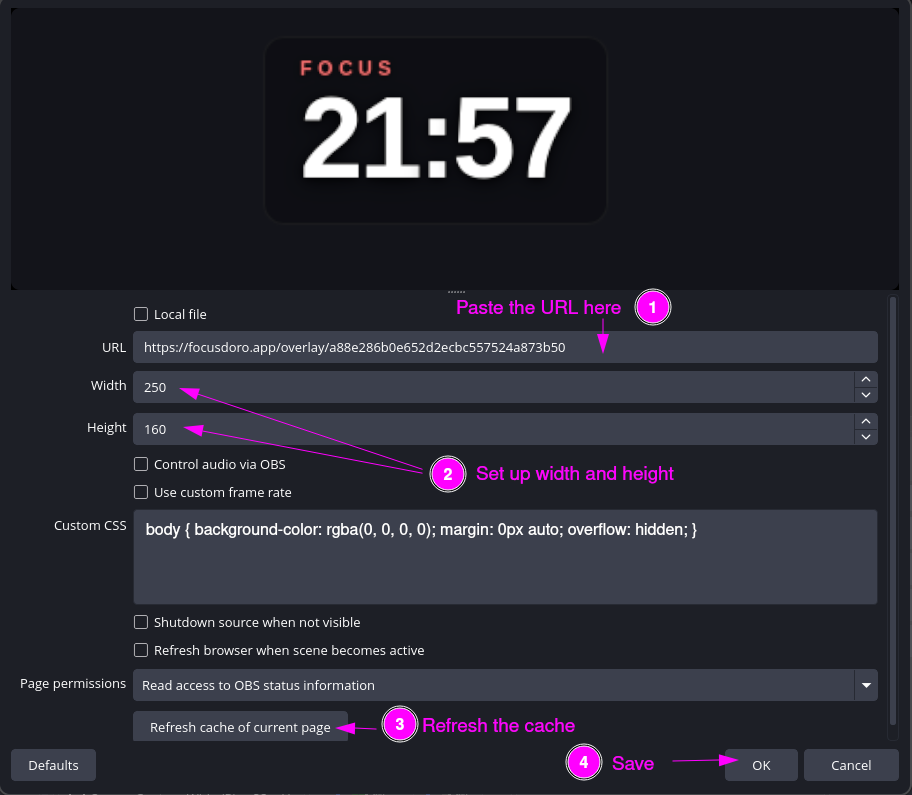
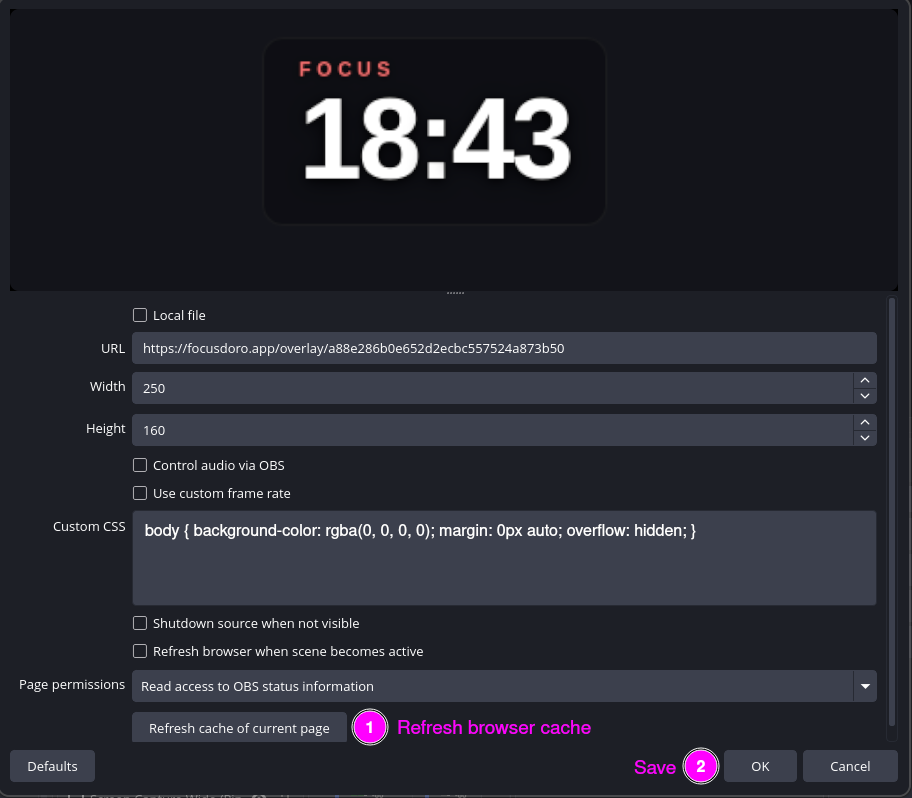
- Paste your overlay URL. In the Browser Source properties window, find the URL field and paste the overlay URL you copied in Step 2. Make sure the URL starts with
https://. - Set the dimensions. Change the Width to
1920and the Height to1080(or match your canvas resolution). A full-canvas source means you pick the overlay's corner and size in Focusdoro's overlay settings instead of resizing the OBS source itself, and those changes apply live without touching OBS again. - Set the Custom CSS. In the Custom CSS field at the bottom of the properties dialog, paste:
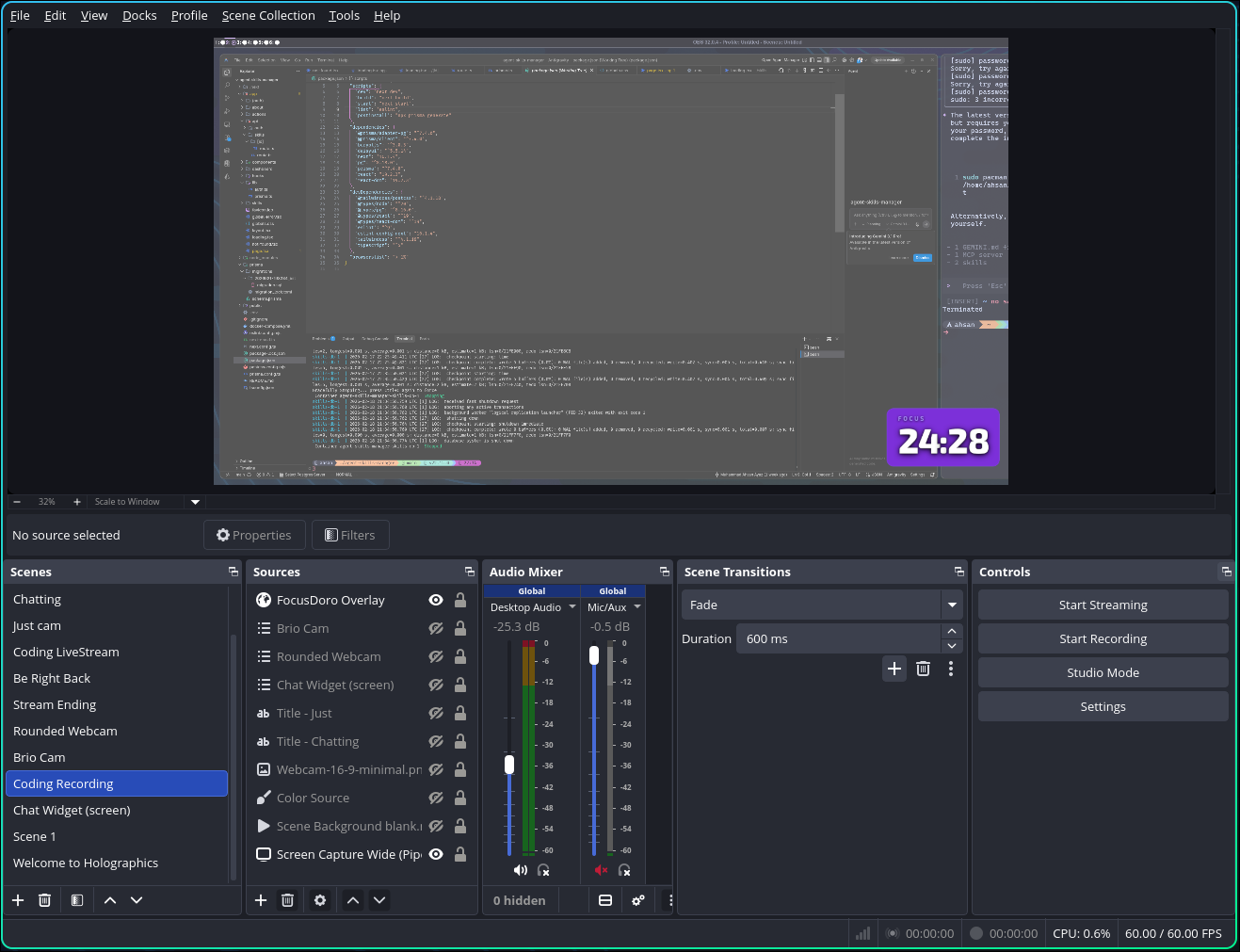
body { background-color: rgba(0, 0, 0, 0); margin: 0px auto; overflow: hidden; }. This ensures the overlay background is fully transparent in your scene. - Click OK. OBS will load the browser source. After a second or two, you'll see the Focusdoro timer appear on your scene canvas. If settings ever get out of sync, you can click Refresh cache of current page in the properties dialog to reload.
Get your free OBS overlay
Sign up free and drop a live timer into OBS in 60 seconds.
Step 4: Position and Resize the Overlay
Because the browser source now covers your full canvas, positioning and resizing happen inside Focusdoro, not in OBS. After clicking OK, open Overlay Settings on focusdoro.app.
To move it: Pick a corner (top-left, top-right, bottom-left, or bottom-right) from the overlay position setting. The most popular spots for a Pomodoro timer are the bottom-right corner (away from most game HUDs) and the top-left corner (easy for viewers to glance at quickly).
To resize it: Use the widget size slider (50-150%). Aim for a size that's readable without being distracting, around 15 to 20% of the screen width works well for most setups. Both settings apply to the live overlay instantly, no need to reopen OBS.
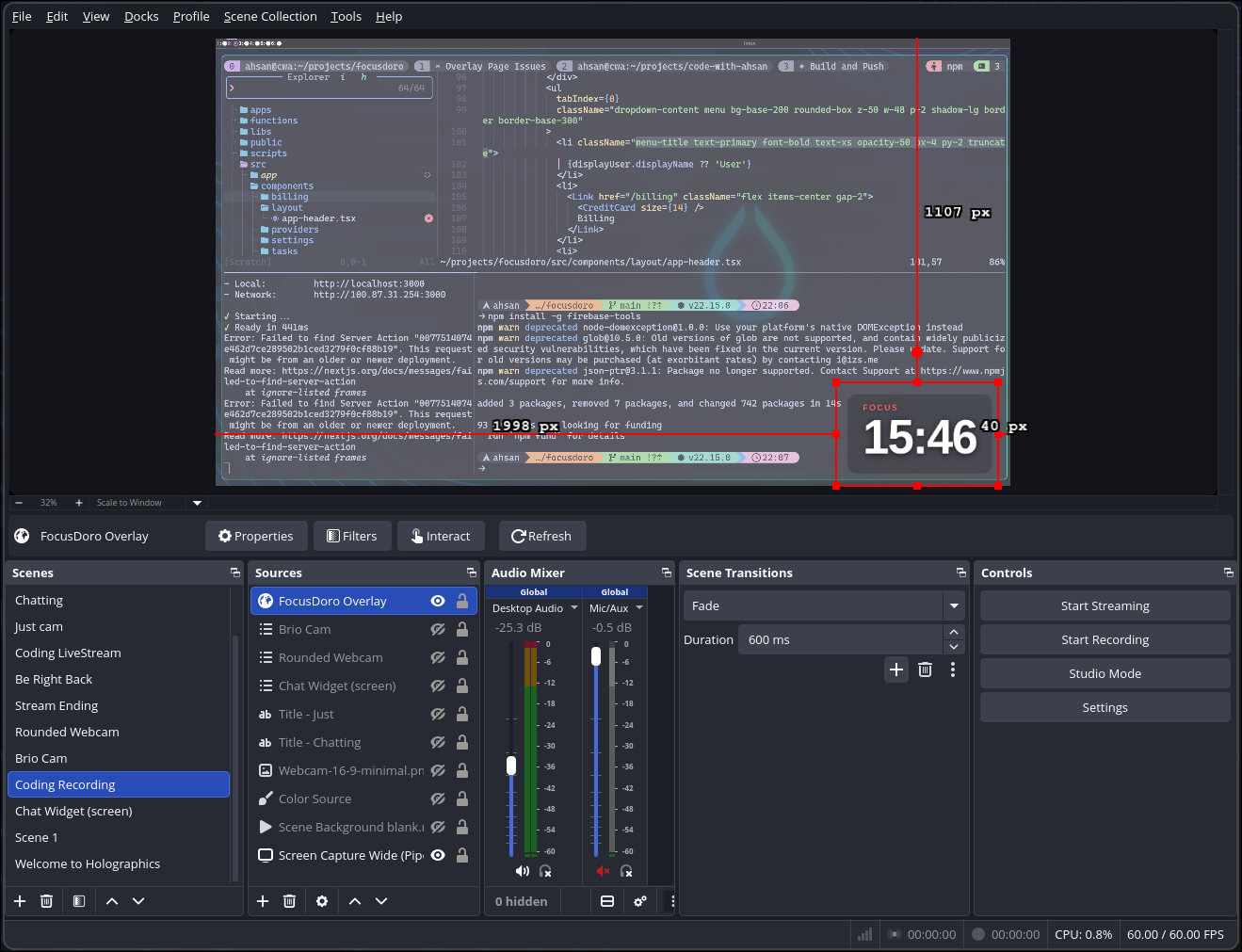
Prefer to keep the classic, snug source instead of a full-canvas one? A browser source sized to the widget itself (for example 220×140, with the widget at 100% size) still works fine if you'd rather drag and resize the source directly in OBS. Just note that with a snug source, resizing the widget in Focusdoro's settings may crop against the smaller source bounds, so match the source size to your chosen widget scale.
If you want the timer to sit in a specific spot relative to your camera or gameplay capture, use the Edit menu → Transform → Edit Transform to enter exact pixel coordinates on the full-canvas source. This is useful if you switch between scenes and want the timer in the exact same position every time.
Step 5: Customize Your Timer
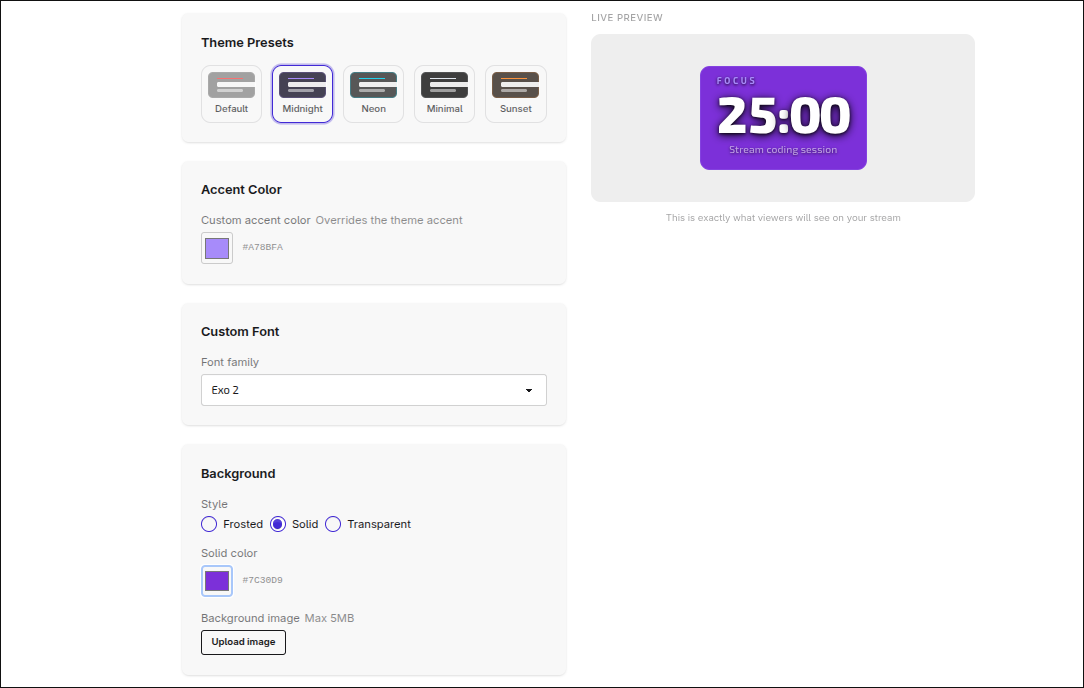
Focusdoro's overlay is fully customizable. You can change the theme, font, colors, and background style to match your stream's aesthetic.
To access settings: In the Focusdoro header, click Overlay Settings. You'll find options for:
- Themes — choose from light, dark, and streamer-specific presets
- Font style — pick a font that matches your brand
- Background — transparent (great for overlaying on gameplay), frosted glass, or solid colour
- Timer display — show or hide the session label and task name on the overlay
Free accounts have access to all core themes. Focusdoro Pro unlocks additional premium themes and advanced customization options.
After saving your settings: Go back to OBS, right-click your Focusdoro browser source, select Properties, and click Refresh cache of current page, then OK. This reloads the overlay with your new settings applied.
Tips for Streamers
Once your timer is set up, here are a few tips from streamers who use Focusdoro every day:
- Use a transparent or frosted background. A solid opaque timer box covers part of your scene permanently. Transparent or frosted backgrounds let viewers see through the timer while still reading it clearly.
- 25/5 is classic, but 50/10 works well for coding streams. The standard Pomodoro split is 25 minutes of work followed by a 5-minute break. But longer focus sessions with longer breaks (50/10) suit deep work like coding, where getting into a flow state takes time. Experiment and see what fits your stream rhythm.
- Viewers appreciate seeing the timer — it creates shared accountability. When your audience can see how much time is left in your focus block, they tend to stay engaged and respect the format. Some streamers even make it a community thing: chat stays quiet during focus time and goes wild in the break.
- Position the timer where it won't cover gameplay UI or your camera. Most games have health bars, minimaps, and ability icons in the corners. Check your layout by running a test stream or using the Preview feature in OBS to make sure the timer doesn't clash with any important UI elements.
- Show your current task on the overlay. Focusdoro can display your active task name on the overlay. This gives your viewers context for what you're working on right now — great for keeping chat engaged during deep focus sessions. See how to set up a Pomodoro timer that shows your current task on stream for the full walkthrough.
Troubleshooting
Most setups work on the first try, but here are the common issues and how to fix them:
- Timer not showing in OBS. The browser source might have cached an old state. Right-click the source in the Sources panel and click Refresh. If that doesn't work, try removing the source and adding it again with the same overlay URL.
- Timer is frozen or not counting down. The OBS browser source renders your overlay URL but the timer itself is controlled from focusdoro.app. Make sure you have the focusdoro.app tab open in your browser and that you've started a session. The overlay reflects what the app is doing in real time.
- Overlay is too small or too large. Open Focusdoro's overlay settings and adjust the widget size slider (50-150%), no OBS changes needed. If you set up a snug, widget-sized source instead, resize it directly on the OBS canvas by dragging the corner handles, or right-click the source, go to Properties, and adjust the Width and Height values.
- Settings not updating after I save. After saving your overlay settings on focusdoro.app, you need to refresh the browser source in OBS. Right-click the source and click Refresh. The overlay will reload with your new settings applied within a few seconds.
- The overlay URL isn't showing in the header. The Overlay URL button only appears when you're signed in. Make sure you're logged into your account. If you just signed up and the button isn't visible, try refreshing the page.
If you are comparing Pomodoro timer tools before committing to this setup, the best Pomodoro timers for streamers guide covers every major option side by side. If you are specifically replacing a StreamElements countdown widget, the StreamElements Pomodoro alternative guide explains the switch in detail. For Twitch-specific positioning and chat patterns, see the Twitch Pomodoro overlay guide. If you want the theory behind why the Pomodoro technique works specifically for live streaming, the Pomodoro technique for streaming guide covers session length decisions and how to use breaks to keep chat engaged. And if you are setting up for a YouTube study stream rather than a live Twitch broadcast, the YouTube study stream setup guide covers the full workflow from gear to upload.
Try Focusdoro free
Join streamers who use Focusdoro to keep their audience engaged during focus sessions.