
Study With Me Overlay for OBS: Pomodoro Timer Setup Guide
Last updated: June 2026 · 8 min read
Study with me streams live or die on one thing: the viewer feels like they are working alongside you, not watching you.
The moment you have to explain what you are doing, the spell breaks. The best study streams communicate structure without words. Viewers glance at your scene, see the timer counting down, see what you are working on, and settle in.
This guide shows you how to add a Focusdoro Pomodoro timer overlay to your OBS study stream scene. Setup takes under 60 seconds. No plugins. The overlay handles the signaling so you can stay in focus.
What Makes a Study With Me Stream Work
Study with me content is the fastest-growing slice of productivity streaming on both Twitch and YouTube. Channels like Study Together pull millions of hours of watch time every month. The formula is not complicated: viewers want accountability and ambient company.
What keeps viewers watching is structure they can see. When the stream has no visible timer, no indication of when the break is, no signal of what phase the streamer is in, viewers have to ask. That friction costs you watch time.
Three things a study overlay needs to provide:
- A visible countdown. Viewers need to see how long until the break. It sets expectations and gives lurkers a reason to stay.
- Phase clarity. Focus block or break? The overlay should make this obvious at a glance without the streamer having to announce it every time.
- The current task. What are you working on right now? This is the single most engaging piece of information on a study stream. Viewers recognize the work, ask questions on it during breaks, and follow your progress.
Generic countdown timers and StreamElements widgets cover the first point only. Focusdoro covers all three.
Why Pomodoro, Not a Generic Countdown
A countdown timer is a single-purpose tool. You set it to 25 minutes, it counts to zero, you manually reset it for the next block. It knows nothing about breaks, nothing about long breaks, and nothing about the structure of a focused session.
Pomodoro is a system. 25 minutes of focus, 5-minute break, repeat 4 times, then a 15-minute long break. The cycle is self-contained. Focusdoro runs the entire cycle automatically and reflects every phase on the overlay in real time.
Practically, this means:
- You start one session at the beginning of the stream. The overlay handles every subsequent phase transition without you touching anything.
- Viewers who arrive mid-stream can immediately see which phase you are in and how long until it changes. They orient themselves in under 3 seconds.
- The break signal is automatic. You do not have to announce it. Viewers see the phase change on the overlay and know it is chat time.
If you want to go deeper on the technique itself, the Pomodoro technique for streaming guide covers how to structure entire stream sessions around the cycle.
What You'll Need
- OBS Studio — free and open-source at obsproject.com. Streamlabs and Twitch Studio also work since both support Browser Sources.
- A Focusdoro account — free. Sign in with Google at focusdoro.app.
- Your study stream scene already set up in OBS. If you are starting from scratch, the full OBS Pomodoro setup guide walks through every step including the initial scene configuration.
Step 1: Get Your Overlay URL
Go to focusdoro.app and sign in with your Google account.
In the header you will see an Overlay URL button with a copy icon. Click it. Your overlay URL is now on your clipboard.
It looks like https://focusdoro.app/overlay/your-unique-token. This URL is tied to your account and stays the same across sessions. Set it up once in OBS and you never touch it again.
Step 2: Add the Browser Source in OBS
Open OBS Studio and switch to your study stream scene.
- In the Sources panel, click the + button.
- Select Browser from the source type list.
- Name the source Focusdoro Timer and click OK.
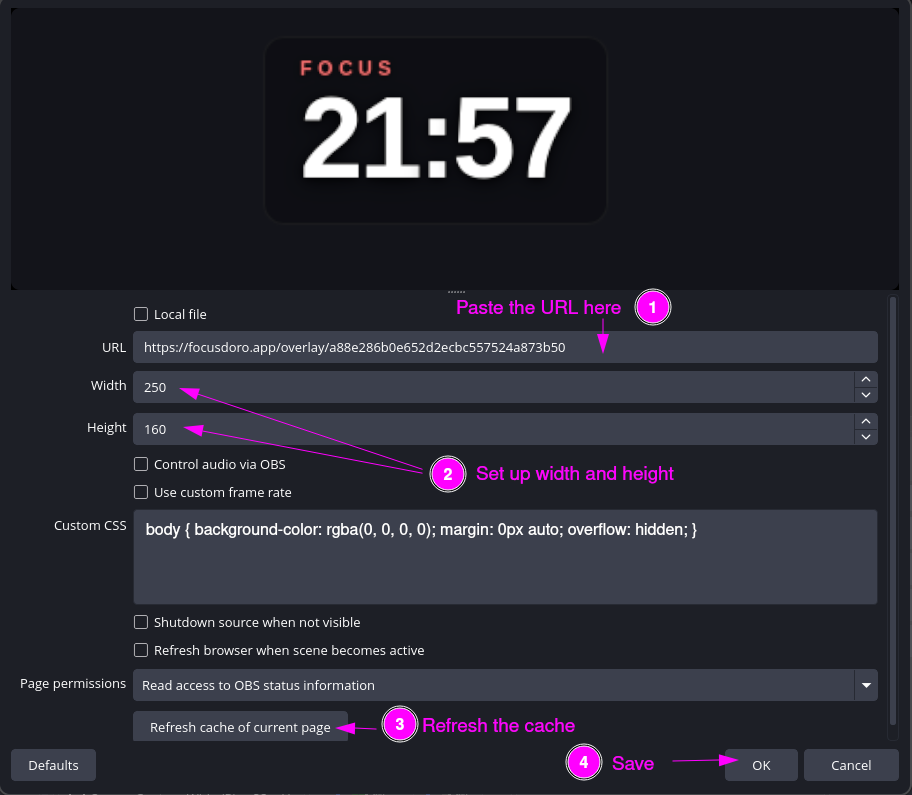
- Paste your overlay URL into the URL field.
- Set Width to
1920and Height to1080(or match your canvas resolution). - In the Custom CSS field, paste:
body { background-color: rgba(0, 0, 0, 0); margin: 0px auto; overflow: hidden; }. This makes the background transparent so the timer sits cleanly over your scene. - Click OK. The timer appears on your canvas within a second or two.
Step 3: Position for the Study Aesthetic
Study streams have a distinct visual identity: lo-fi background, camera in one corner, minimal UI. The timer needs to be visible without breaking that calm.
Where to place it:
- Top-right corner — clean and minimal. Does not fight with a lower-third camera or a lo-fi background in the lower half of the scene. The most common choice for study streams.
- Bottom-right corner — away from any desk or camera feed if yours sits bottom-left. Keeps the timer at a natural reading position.
- Bottom center above a bar overlay — if you run a full-width info bar along the bottom of your scene, the timer sits cleanly above it.
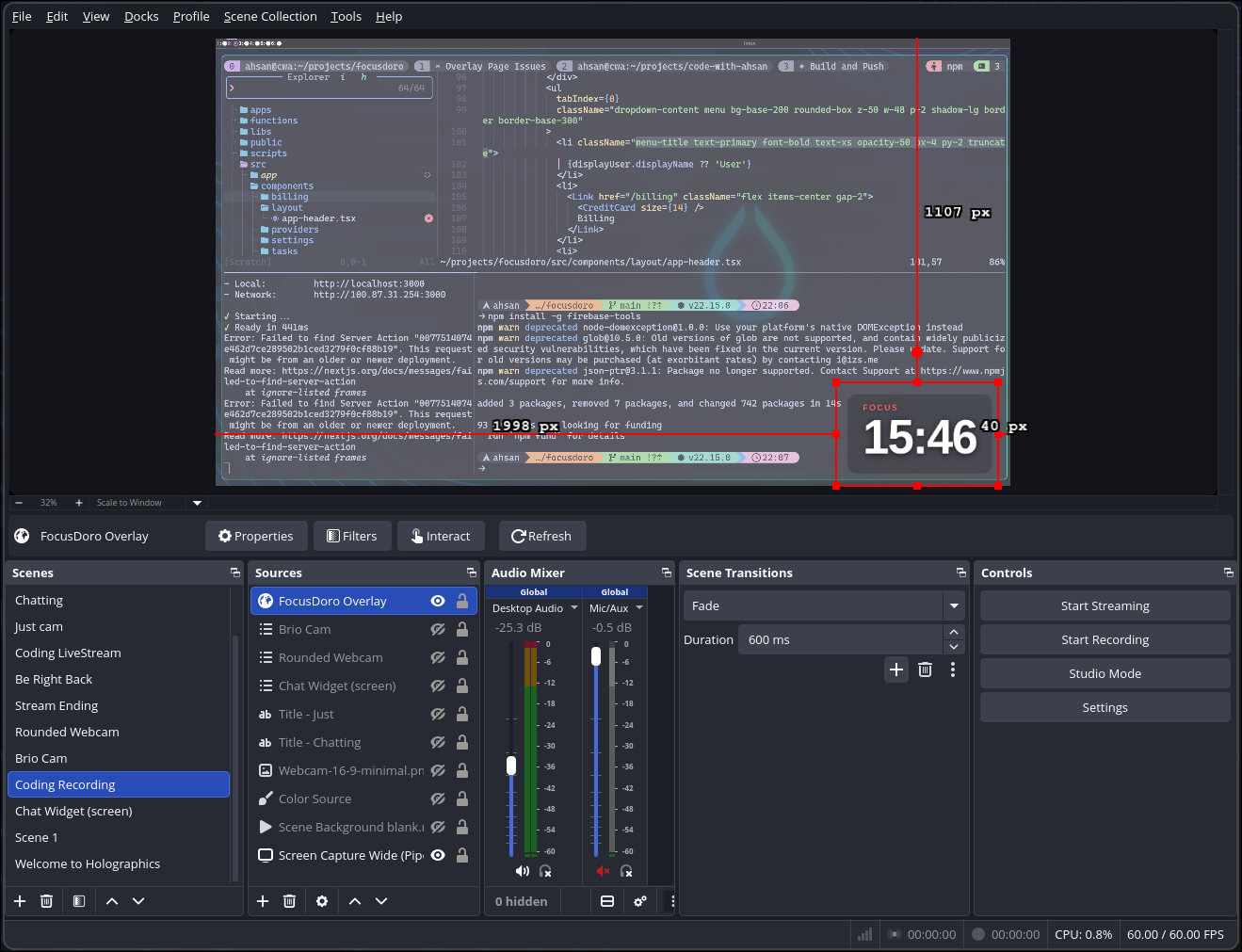
With a full-canvas source, pick the corner and size in Focusdoro's overlay settings instead of dragging the source in OBS. Use the widget size slider (50-150%); for most study scenes, 13 to 16% of your canvas width reads well without dominating the visual. Changes apply live, no OBS restart needed.
In Focusdoro's Overlay Settings, set the background to Transparentfor the lo-fi look. If the timer text is hard to read over your background, switch to Frosted Glass for a subtle panel behind the timer.
Get your free OBS overlay
Sign up free and drop a live timer into OBS in 60 seconds.
Step 4: Show Your Current Task on Stream
This is the feature that separates a Focusdoro study stream from a stream with a random countdown widget.
Enable task display in Overlay Settings. Now instead of just seeing 24:32 counting down, your viewers see:
24:32
Chapter 4 — Thermodynamics notes
Viewers know exactly what you are working on. No narration required.
When you move to a new task, click the task input on focusdoro.app, type your next task, and press Enter. The overlay updates in real time. OBS picks up the change immediately. You never need to touch OBS settings mid-stream. See the full guide to setting up a task-display Pomodoro overlay for anchor placement and label conventions.
For study streams this matters more than for any other stream type. Your viewers are often doing their own work alongside you. Seeing your task — whether it is lecture notes, problem sets, or project work — creates a parallel accountability that keeps people watching. They check in on whether you finished the task before the break.
Compare this to what StreamElements and Streamlabs timer widgets can do: they show a countdown. That is it. There is no session structure, no break cycle, no task context. See the best OBS overlays for study streams for a full breakdown of what each tool covers.
Structuring Your Study Stream Around Pomodoro
The overlay does the signaling. You still need a light structure for the stream itself.
Here is what works for most study and creator streamers:
- Start with a 60-second setup block. Say what you are studying, type your first task into Focusdoro, and start the first Pomodoro. Viewers immediately know what to expect and when the first break is.
- Run silent during focus blocks. That is the aesthetic. The overlay is doing the communicating. You can play lo-fi music or ambient sound. Chat tends to self- regulate when a timer is visible — most viewers go into lurk mode automatically.
- Use every break for a brief chat check-in. Five minutes is enough. Say what you finished, type your next task into Focusdoro so the overlay updates, then ask chat what they are working on. This is when watch time compounds — viewers stick around for the break and then decide to stay for the next block.
- The long break after 4 Pomodoros is real content. Focusdoro triggers it automatically. 15 minutes is enough for a genuine conversation with chat, a drink refill, or a screen share of what you completed. Viewers who arrive during long breaks often stay for the next full cycle.
- Update your task at the top of each Pomodoro. Takes 5 seconds. Keeps the overlay accurate. Viewers notice when it changes — it is a micro-moment of engagement every 25 minutes.
If you want to see how other overlay options fit into this structure, the study stream overlays roundup covers scene packages, lo-fi backgrounds, and how a Pomodoro timer fits alongside them. For a deeper dive on the Twitch-specific version of this setup, the Twitch Pomodoro overlay guide covers chat engagement and break-time tactics in more detail. If you are building a YouTube channel rather than a Twitch stream, the YouTube study stream setup guide covers gear, OBS recording workflow, and how to structure sessions for long watch time on pre-recorded uploads.
Troubleshooting
- Overlay not loading in OBS. Right-click the Browser Source in the Sources panel and click Refresh. If it still does not load, remove the source and re-add it with the same URL from focusdoro.app.
- Timer is frozen or showing the wrong phase. The overlay reflects whatever Focusdoro is doing in your browser tab. Make sure focusdoro.app is open and a session is running. If the tab was closed, reopen it and start a session.
- Task name not appearing on stream. Check that task display is enabled in Focusdoro Overlay Settings. After enabling it, right-click the Browser Source in OBS, click Properties, then Refresh cache of current page, then OK.
- Background not transparent. Two settings both need to be correct: the Custom CSS in OBS Browser Source properties must include
background-color: rgba(0, 0, 0, 0), and Focusdoro Overlay Settings must have Background set to Transparent. - Overlay visible in OBS preview but not on stream. Confirm that the Focusdoro source is not hidden (eye icon in the Sources panel) and that your scene is active. If you are using scene collections, check you are editing the correct collection.
- Overlay URL button not visible in Focusdoro header. The button only appears when you are signed in. Sign in at focusdoro.app and refresh if you do not see it.
Try Focusdoro free
Join streamers who use Focusdoro to keep their audience engaged during focus sessions.