
Twitch Pomodoro Overlay: Add a Live Timer to Your Stream
Last updated: June 2026 · 9 min read
Coding streams, study streams, creative streams. They all have one thing in common: viewers want to know what you're doing and how long you're doing it.
A Pomodoro timer on stream answers both questions at once. Your audience can see exactly how long your focus block runs, when your break starts, and what task you're working on. It creates a rhythm that keeps people engaged even during silence.
This guide shows you how to add a live Pomodoro overlay to your Twitch stream using Focusdoro. The setup takes under 60 seconds and requires no OBS plugins.
Why Pomodoro Works on Twitch
Twitch viewers are used to watching people play games with structure: rounds, levels, boss fights. Pomodoro gives productivity and creative streams that same structure.
When there's a timer on screen, viewers know:
- You're in a 25-minute focus block. Chat goes quiet. They can lurk or do their own work alongside you.
- A break is coming in 8 minutes. They'll stick around for that.
- You're not going to spontaneously end the stream or disappear into a rabbit hole with no signal.
Streamers who run structured Pomodoro sessions consistently report better viewer retention and more predictable chat patterns. The timer is accountability for you and a clock for them.
The challenge has always been getting that timer on stream cleanly. A generic countdown in OBS doesn't know what a focus session is. Browser-capturing your Pomofocus tab means viewers see the whole webpage. Neither solves the problem well.
Focusdoro was built to solve this. It generates a dedicated overlay URL — a transparent browser page showing only your timer — that you drop into OBS as a Browser Source. Your viewers see a clean, live Pomodoro timer as part of your scene layout.
What You'll Need
- OBS Studio — free, open-source. Download from obsproject.com if you haven't already. Streamlabs and Twitch Studio also work.
- A Focusdoro account — free. Sign in with Google at focusdoro.app.
- Your Twitch stream scene already set up in OBS — this guide assumes you have a working scene. If you're starting from scratch with OBS, the full OBS setup guide covers everything from the beginning.
Step 1: Get Your Overlay URL
Go to focusdoro.app and sign in with your Google account. Once you're in, look at the header at the top of the page.
You'll see an Overlay URL button with a copy icon. Click it.
Your overlay URL is now on your clipboard. It looks like https://focusdoro.app/overlay/your-unique-token. This is a persistent URL tied to your account — it won't change, so you only need to set this up once per OBS scene.
Step 2: Add It to OBS
Switch to OBS Studio and open the Twitch scene you want to add the timer to.
- In the Sources panel, click the + button at the bottom.
- Select Browser from the source type list.
- Name the source something clear — Focusdoro Timer works fine. Click OK.
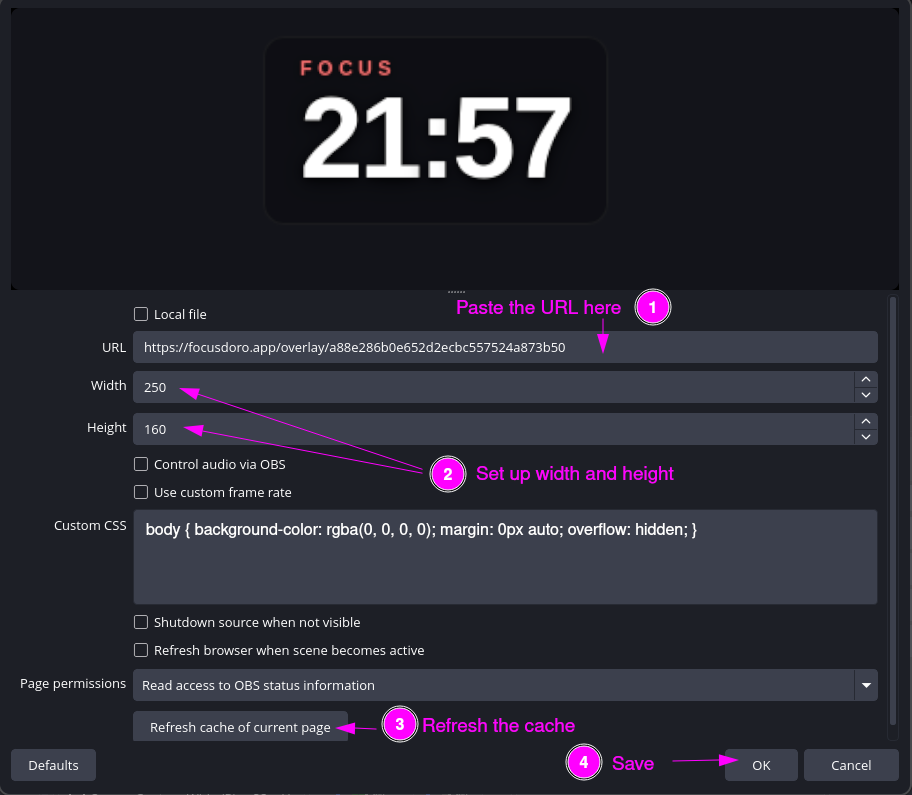
- In the Browser Source properties, paste your overlay URL into the URL field.
- Set Width to
1920and Height to1080(or match your canvas resolution). You'll pick the overlay's corner and size inside Focusdoro instead of resizing the OBS source. - In the Custom CSS field, paste:
body { background-color: rgba(0, 0, 0, 0); margin: 0px auto; overflow: hidden; }. This makes the overlay background transparent so it sits cleanly over your stream. - Click OK. OBS will load the overlay. Within a second or two, your Pomodoro timer appears on the scene canvas.
Step 3: Position It on Your Scene
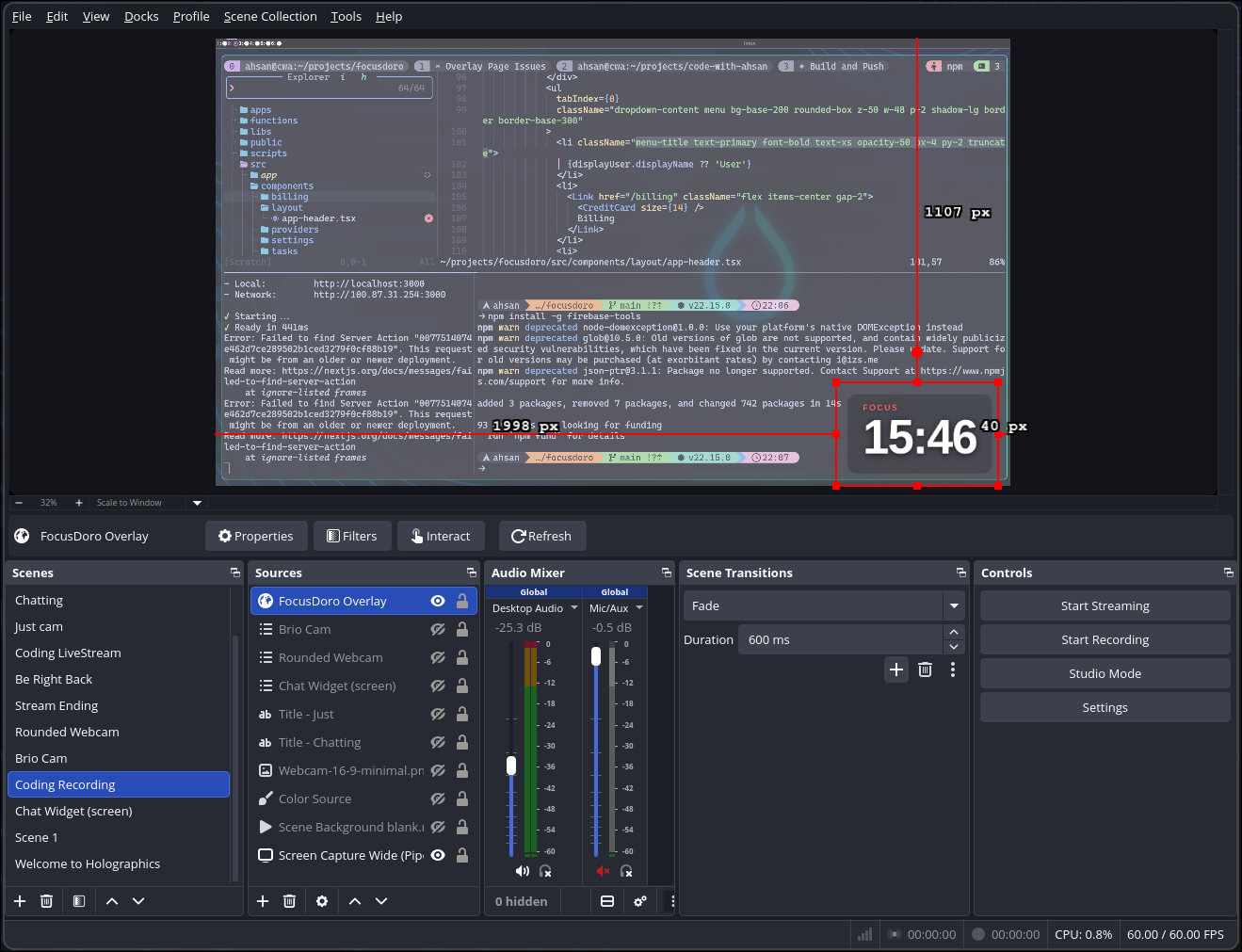
With a full-canvas browser source, you pick the corner and size inside Focusdoro's overlay settings instead of dragging the source in OBS. Changes apply live, no need to reopen OBS.
Common positions for Twitch streams:
- Bottom-right corner: away from most game HUDs and camera feeds. The most popular spot.
- Top-right corner: visible without obscuring the camera in a lower-third position. Good for coding streams where the code editor fills most of the screen.
- Bottom-left corner: below the camera if you run a camera in the bottom-left.
To resize, use the widget size slider (50-150%) in Focusdoro's overlay settings. A size of around 15% of your canvas width reads clearly without dominating the scene.
Get your free OBS overlay
Sign up free and drop a live timer into OBS in 60 seconds.
Step 4: Customize for Twitch
Focusdoro's overlay appearance is customizable. Head back to focusdoro.app and click Overlay Settings in the header.
Key options for Twitch streams:
- Background: Transparent — recommended for most stream scenes. The timer text floats over your gameplay or screen capture without a box behind it.
- Background: Frosted Glass — a subtle frosted panel behind the timer. Useful if the transparent version is hard to read against your background.
- Theme — pick from light, dark, and streaming-specific presets to match your channel's colour palette. Focusdoro Pro unlocks additional premium themes.
- Font — choose a font that fits your stream brand.
After saving settings, go back to OBS. Right-click your Focusdoro browser source, click Properties, then click Refresh cache of current page and OK. The overlay reloads with your new settings.
Show Your Current Task on Stream
This feature is underused and it's one of the most powerful things the overlay does.
When you enable task display in Overlay Settings, your active task name appears on the overlay below the timer. So instead of just seeing "24:32" counting down, your viewers see:
24:32
Refactoring auth module
For coding streams this changes how viewers engage. They know exactly what you're working on. Chat stays relevant to the task. When the timer ends and you move to the next task, viewers see that update immediately.
To set your current task: click the task input on focusdoro.app, type your task, and press Enter. The overlay updates in real time — no need to touch OBS. For a deeper walkthrough of this specific feature, see setting up a Pomodoro timer that shows your current task on stream.
This is also the reason having the full OBS Pomodoro setup matters over a generic countdown. A countdown timer tells viewers when the break is. A Pomodoro overlay with task display tells viewers what you're doing and keeps them invested in your progress.
Structuring Your Stream Around Pomodoro
Getting the timer visible on your Twitch scene is step one. Getting value from it requires a light structure that your viewers can follow.
Here is what works for most developer and study streamers:
- Open the stream with a 1-minute setup block. Say what you're working on, set your task in Focusdoro, and start the first Pomodoro. Viewers immediately know what to expect.
- 25/5 is the classic split. 25 minutes of focused work, 5 minutes of break. For coding streams where getting into flow state takes time, 50/10 works well. Set your interval in Focusdoro settings before the stream and leave it.
- Use the break as a scheduled chat window. When the timer hits zero and the break starts, call it out in chat: "Break time — what are you all working on?" Viewers who were lurking during focus will participate during breaks.
- Update your task at the start of each Pomodoro. Takes three seconds and keeps the overlay accurate. Viewers notice when it changes.
- Long break after every 4 Pomodoros. Focusdoro handles this automatically. The overlay shows the longer break phase. Use it to take a real break — step away from the desk, stretch, come back fresh.
Using the Timer for Chat Engagement
Twitch chat has different energy during a focus block versus a break. You can use the Pomodoro structure to make both phases more engaging.
During focus blocks:
- Pin a chat message at the start of each Pomodoro: "Focus block — lurk mode on". Viewers who are also doing their own work find this welcoming.
- Let the task display on the overlay do the explaining. Viewers can follow along without you narrating every keystroke.
- Keep ambient music or a lofi playlist going. It fills the silence without breaking concentration.
During breaks:
- Actively call chat to respond. "5-minute break — tell me what you're stuck on."
- Update your next task live in Focusdoro so viewers can see what's coming.
- Run a quick Twitch Poll if you want audience input on what to tackle next.
The structure rewards consistent viewers. People who watch your stream regularly know when to engage and when to focus alongside you. That creates the "study with me" dynamic that keeps watch time high on study stream channels. If you run charity or milestone streams, the subathon timer for OBS guide explains how to run a subscription-powered countdown alongside a Pomodoro overlay without the two sources conflicting.
Troubleshooting
- Overlay not showing in OBS. Right-click the browser source in the Sources panel and click Refresh. If that doesn't work, remove the source and re-add it with the same overlay URL from focusdoro.app.
- Timer is frozen. The overlay reflects whatever Focusdoro is doing in your browser. Make sure you have focusdoro.app open in a tab and a session running. If the tab is closed, the timer shows the last state.
- Overlay visible in OBS preview but not on Twitch. Check that your scene is set as the current active scene before you go live. The overlay source also needs to be visible (eye icon in the Sources panel, not hidden).
- Background not transparent. Make sure the Custom CSS in the Browser Source properties includes
background-color: rgba(0, 0, 0, 0). And in Focusdoro's Overlay Settings, set Background to Transparent. Both need to be set. - Customization changes not showing after save. Right-click the Focusdoro browser source in OBS, click Properties, then Refresh cache of current page, then OK. The overlay reloads with the new settings.
- Overlay URL button not visible in the Focusdoro header. The button only appears when you are signed in. Sign in at focusdoro.app and refresh the page if you don't see it.
Try Focusdoro free
Join streamers who use Focusdoro to keep their audience engaged during focus sessions.