
Pomodoro Timer for OBS: Best Options for Streamers (2026)
Last updated: June 2026 · 7 min read
You want a Pomodoro timer on your OBS scene. You have Googled around and found a mix of generic countdown widgets, Chrome extensions that only work in a browser tab, and apps that have nothing to do with streaming. None of them are quite right.
Here is a clear breakdown of what your options actually are, what the criteria for a good Pomodoro timer for OBS look like, and which one works best for streamers.
What Makes a Good Pomodoro Timer for OBS
Not every timer belongs on a stream. A Pomodoro timer for OBS has to meet a specific set of requirements that generic timers miss.
- Works as an OBS Browser Source. The timer must be a URL you can paste into OBS as a Browser Source. No screen capturing a tab. No manual OBS text source you have to update by hand. A dedicated overlay URL is the only clean approach.
- Transparent background. The overlay needs to sit on top of your scene without a white or black box around it. Your stream's visuals should show through.
- Live updates without touching OBS. When the timer transitions from Focus to Break, the overlay should update automatically. You should not need to refresh anything or swap sources.
- Pomodoro structure, not just a countdown. A generic countdown you set to 25:00 and restart manually is not a Pomodoro timer. You need automatic phase cycling: focus block, short break, long break after 4 sessions.
- No plugin required. OBS plugin installs break between updates and are not portable across machines. Browser Sources are the reliable primitive.
- Free, or at minimum free for the overlay feature. Streamers at the affiliate level should not need a paid subscription just to put a timer on their scene.
Most options in the market fail at least two of these. Here is where each one actually lands.
Your Options Compared
Four approaches get recommended when you search for a Pomodoro timer for OBS. They are not equivalent.
| Option | OBS Browser Source | Pomodoro structure | Transparent bg | Task display | Free |
|---|---|---|---|---|---|
| Focusdoro | Yes | Yes (auto-cycling) | Yes | Yes | Yes |
| StreamElements countdown widget | Yes | No (manual restart) | Yes | No | Yes |
| Pomofocus / Marinara | No (browser tab only) | Yes | N/A | No | Yes |
| Be Focused / Forest | No (desktop app only) | Yes | N/A | No | Limited |
StreamElements and Streamlabs countdown timers
These are built for follow-goal countdowns and hype timers, not Pomodoro work blocks. You can set one to 25:00 and add it as a browser source, but when it hits zero nothing happens automatically. You restart it manually, set the next duration manually, and track break cycles yourself. There is no concept of a short break versus long break, no phase display, and no task name. It is a countdown, not a Pomodoro timer.
Browser-extension Pomodoro timers (Pomofocus, Marinara)
Pomofocus and Marinara are solid solo-use Pomodoro timers. The problem is they live in your browser. You cannot turn a browser tab into a clean OBS overlay without capturing the entire tab, which means viewers see the whole webpage rather than just the timer widget. There is no dedicated overlay URL. Suitable for personal focus off-stream. Not suitable for OBS.
Desktop Pomodoro apps (Be Focused, Forest)
Be Focused on macOS and Forest on mobile are well-designed apps. Neither produces a browser source URL. They are personal productivity tools that have no stream integration surface. If you want a Pomodoro timer off-stream and a separate one on-stream, you end up managing two timers that are not in sync. That breaks as soon as you pause, skip a phase, or change your session length mid-stream.
Why Focusdoro
Focusdoro was built specifically for the streamer use case. The decisions that went into it are not obvious from the outside but matter a lot once you are live.
- Dedicated overlay URL per account. Your URL never changes. Set it up once in OBS and forget it. The overlay updates in real time as you control the timer from the web app.
- Auto-cycling phase structure. Focus block runs 25 minutes, short break runs 5, long break triggers after 4 completed sessions. You start the session and walk away. The timer handles the transitions.
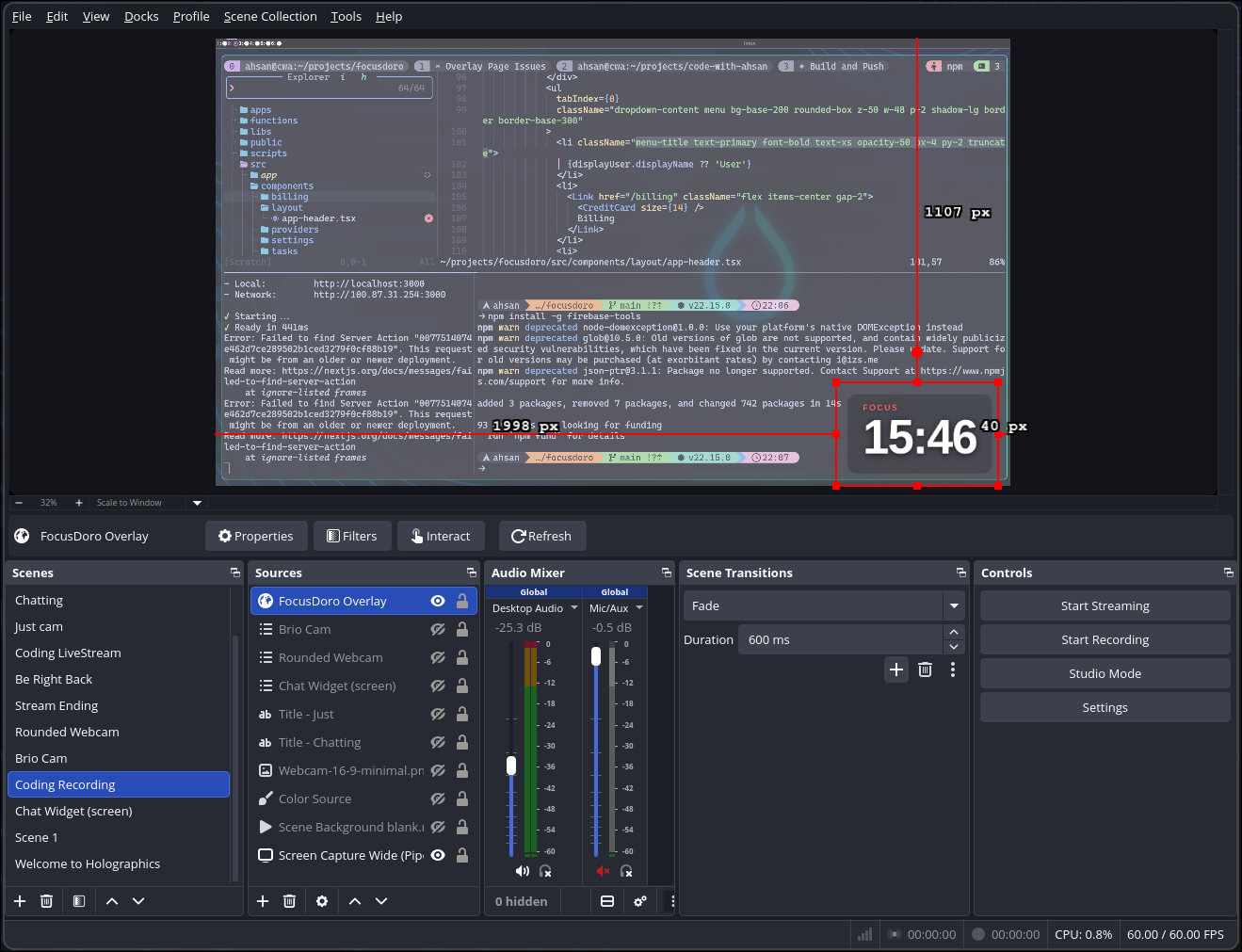
- Task name on the overlay. Type your current task in Focusdoro. It appears on your OBS scene immediately. Viewers see "Refactoring auth module" below the timer rather than a blank countdown. No manual OBS text source. No screen sharing. Full setup guide here.
- Transparent background out of the box. The overlay is designed to sit on top of your scene. One line of Custom CSS in the OBS Browser Source is all it takes.
- Works across OBS Studio, Streamlabs, and Twitch Studio. Any software with Browser Source support works. The overlay URL does not care which platform you stream from.
- Free for the core overlay. The timer, overlay URL, and task display are free. Focusdoro Pro ($3/month) adds premium visual themes if you want a more polished look for your channel brand.
No other option in the table above combines all six. The gap is not marginal — it is the difference between a Pomodoro timer that belongs on a stream and one that was repurposed from a different use case.
Get your free OBS overlay
Sign up free and drop a live timer into OBS in 60 seconds.
Setup in 60 Seconds
The full step-by-step walkthrough lives in the OBS Pomodoro setup guide. The short version:
- Sign in at focusdoro.app.
- Click the Overlay URL button in the header and copy the URL.
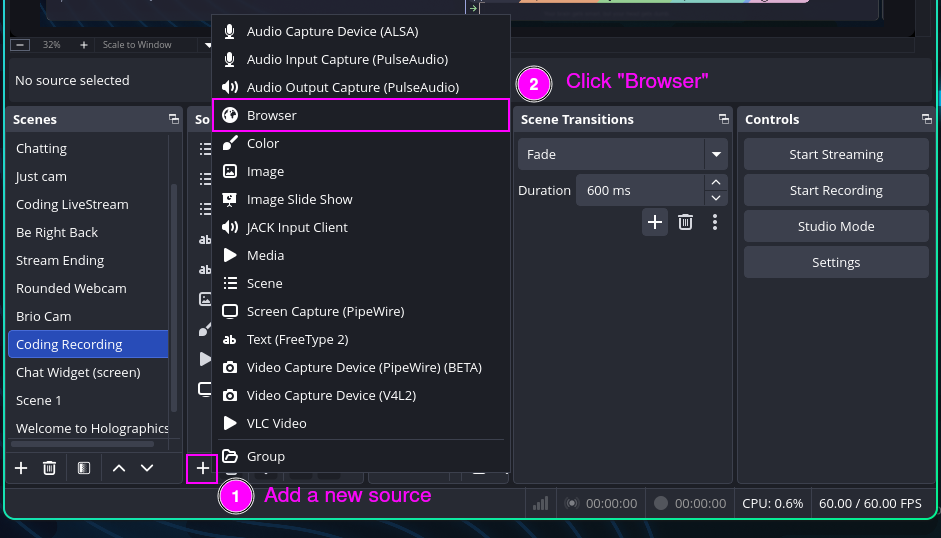
- In OBS, add a Browser Source. Paste the URL. Set width and height to match your canvas resolution (for example 1920x1080).
- Add this to the Custom CSS field:
body { background-color: rgba(0, 0, 0, 0); margin: 0px auto; overflow: hidden; } - Click OK. The timer appears on your scene. Pick the corner and size in Focusdoro's overlay settings, changes apply live without touching OBS.
That is it. Start a session in Focusdoro and the overlay counts down live on your stream.
If you stream on Twitch specifically and want tips on structuring your sessions around Pomodoro, the Twitch Pomodoro overlay guide covers break timing, chat engagement patterns, and task display strategies. For study stream setups, the study with me overlay guide has scene layout recommendations and persona-specific positioning.
To compare Focusdoro against other Pomodoro tools built for streamers, the best Pomodoro timers for streamers guide gives a fuller breakdown with more options.
If you need a generic countdown timer rather than a Pomodoro timer, the how to add a countdown timer to OBS guide covers the Lua script method, OBS plugins, and browser source options for non-Pomodoro countdowns.
Try Focusdoro free
Join streamers who use Focusdoro to keep their audience engaged during focus sessions.