
Subathon Timer for OBS & Twitch: 3 Free Tools (2026)
Last updated: August 2026 · 9 min read
You are planning a subathon and need a timer in OBS that grows every time someone subscribes or donates. A regular countdown timer will not work. You need a specific tool.
This guide covers exactly that: what a subathon timer is, why it is different from a regular OBS countdown, which tools actually work, and how to wire one into OBS in under 10 minutes.
What Is a Subathon Timer?
A subathon is a stream event where the clock keeps running as long as viewers keep supporting. Each subscription, donation, or bit cheer adds a configured amount of time to a live countdown. When the countdown hits zero, the subathon ends.
The timer that makes this work is not a standard countdown. It is a live counter connected to your Twitch channel events via the Twitch EventSub API. When a sub comes in, the service receives the event and adds time. The overlay you paste into OBS reflects that change within 1 second.
Most streamers run a subathon with a starting duration (e.g., 2 hours) and a maximum cap (e.g., 48 hours) so the event has a defined ceiling. The time-per-event settings are fully configurable: different rates for Tier 1, Tier 2, Tier 3 subs, bits thresholds, and monetary donation amounts.
Subathon Timer vs Regular Countdown
This distinction matters because the most common mistake is trying to use a regular OBS countdown timer for a subathon.
| Feature | Regular Countdown Timer | Subathon Timer |
|---|---|---|
| Counts down from a set duration | Yes | Yes |
| Grows when viewers subscribe | No | Yes |
| Responds to Twitch bits / donations | No | Yes |
| Requires Twitch API connection | No | Yes |
| Works offline | Yes (Lua script methods) | No |
| OBS Browser Source compatible | Yes | Yes |
A regular OBS countdown — whether you use the built-in Lua script, the Ashmanix plugin, or a browser source overlay — counts down and stops. It has no awareness of Twitch events. You cannot add time to it programmatically from subs.
The full breakdown of regular countdown timer methods is in the how to add a countdown timer to OBS guide. Subathon is Method 5 in that guide, but it warrants dedicated coverage because the setup is completely different.
Tools That Actually Work
Three options cover most subathon setups:
- subathontimer.com — standalone, free, Twitch-native. The most commonly used dedicated subathon timer. WebSocket-based, browser source URL output, supports pause and manual time adjustments mid-stream.
- StreamElements Subathon Widget — free, integrated into StreamElements alerts. Best choice if you already run StreamElements for chat overlays and alerts. Keeps everything on one platform.
- Streamer.bot Subathon Countdown Timer extension — for streamers already running Streamer.bot. Integrates with your existing bot infrastructure. More configuration but more control.
All three output a browser source URL you paste into OBS. The mechanics are the same. The difference is in the ecosystem you are already on.
Setup: StreamElements Subathon Widget
This is the fastest path if you have a StreamElements account. If you do not, subathontimer.com is simpler to start with.
- Log in at streamelements.com and go to Overlays.
- Create a new overlay. Search the widget library for Subathon and add the Subathon Timer widget to your overlay canvas.
- In the widget settings, configure:
- Starting duration — how much time the timer starts with (e.g., 2 hours = 7200 seconds).
- Time per Tier 1 sub — most streamers set this to 5 minutes (300 seconds).
- Time per Tier 2 sub — commonly 10 minutes (600 seconds).
- Time per Tier 3 sub — commonly 15 minutes (900 seconds).
- Time per 100 bits — commonly 1 minute (60 seconds).
- Maximum time cap — set a hard ceiling (e.g., 172800 seconds = 48 hours) so the timer cannot grow without bound.
- Save the overlay. Copy the overlay URL from the StreamElements editor.
You now have a browser source URL. Jump to the Adding the Timer to OBS section below to wire it in.
Setup: subathontimer.com
The simplest standalone option. No existing platform required.
- Go to subathontimer.com and connect your Twitch account via OAuth. The site requests read-only access to your channel subscriptions and bits events.
- Configure your time-per-event settings. Same categories as StreamElements: time per sub tier, bits threshold, and donation amount if you use a supported tip platform.
- Set your starting duration and maximum cap.
- Copy the browser source URL from the dashboard. It will look like
https://subathontimer.com/overlay/your-unique-id.
subathontimer.com also supports manual time adjustment during the stream, a pause button, and milestone goals. You control all of these from the dashboard while streaming.
Adding the Timer to OBS
Once you have your browser source URL from whichever service you chose:
- In OBS Studio, open the scene where you want the subathon timer to appear.
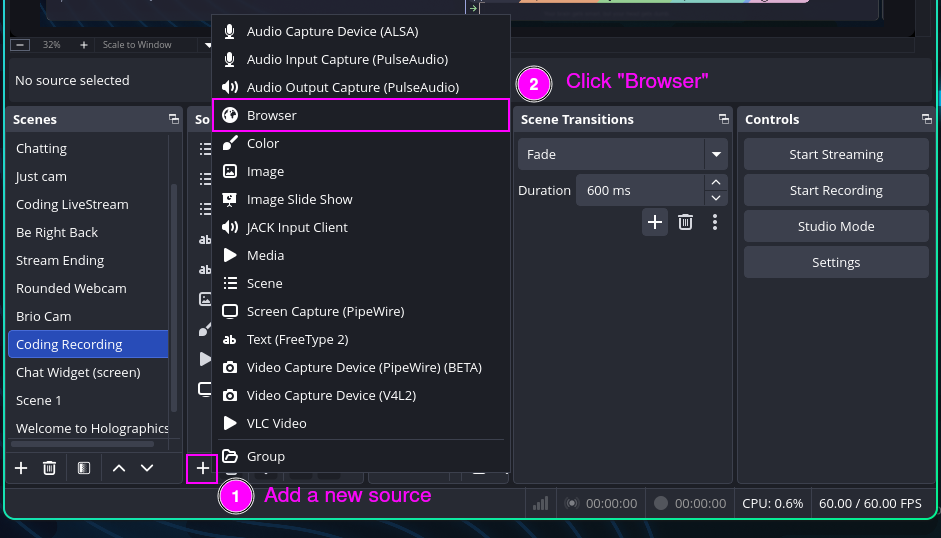
- In the Sources panel, click + and select Browser Source.
- Give it a name like Subathon Timer and click OK.
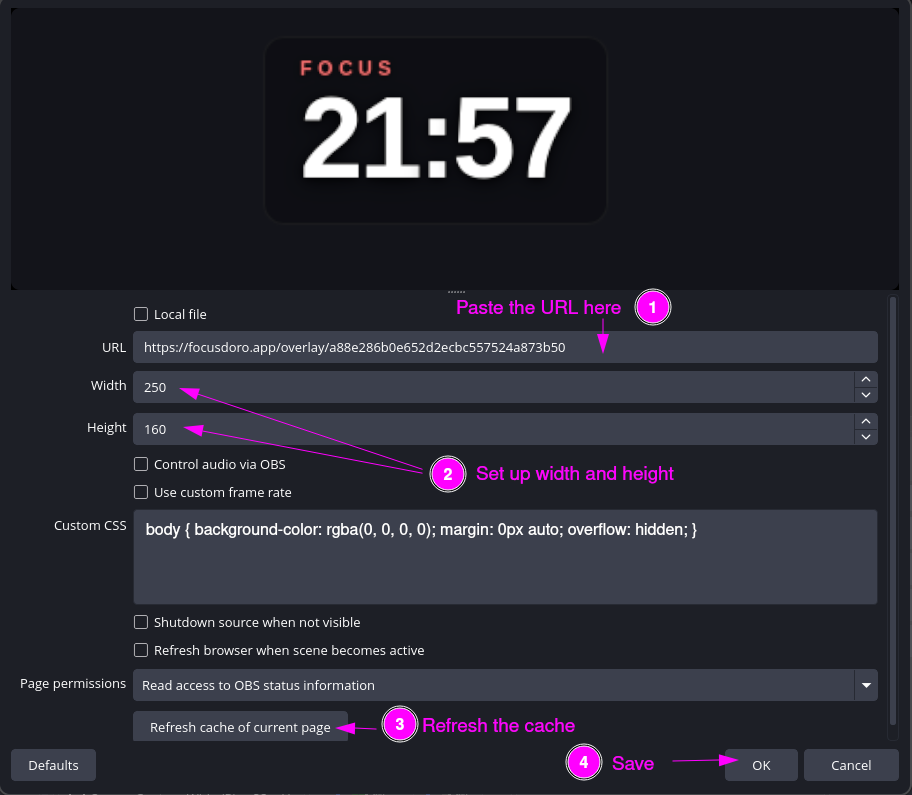
- Paste your subathon timer URL into the URL field.
- Set the dimensions. Most subathon overlays are designed to run at your stream resolution (1920 x 1080). If the service outputs a widget-style overlay, check their recommended size in the dashboard.
- In the Custom CSS field, add the transparency CSS:
body { background-color: rgba(0, 0, 0, 0); margin: 0px auto; overflow: hidden; }- Click OK.
- Position the timer on your canvas. Subathon timers are typically displayed large and prominently — top-center or top-right at 20-30% of canvas width — because the audience is actively watching the number grow.
- Test it: start a session in the timer service dashboard and confirm the overlay updates in OBS preview within 1-2 seconds. If it does not update, right-click the source and click Refresh cache of current page.
The timer now responds to live Twitch events. When a viewer subscribes, the service receives the event and updates the overlay in real time.
Get your free OBS overlay
Sign up free and drop a live timer into OBS in 60 seconds.
Managing the Timer During the Subathon
A subathon can run for hours or days. You need to be able to manage the timer without touching OBS mid-stream.
- Pause button. Both subathontimer.com and StreamElements let you pause the countdown from your dashboard. Use this during bathroom breaks or meals where you step away but do not want the timer draining.
- Manual time adjustment. If an event fails to register (network hiccup, API delay), you can add time manually from the dashboard. Keep a browser tab open to the timer dashboard during the stream.
- Milestone goals. Some services display milestone markers on the timer overlay (e.g., a visual change at 24 hours remaining). Configure these before the stream starts. They are harder to change mid-subathon without refreshing the overlay.
- Multi-scene usage. If your stream has a main scene and a BRB scene, add the Browser Source to both scenes. OBS sources are scene-specific by default — it will not appear on scenes where you have not added it.
Do not stop the timer service mid-stream by closing the dashboard tab. The WebSocket connection drops and the overlay may freeze. Keep the dashboard open in a background tab throughout the event.
Running Pomodoro Blocks Inside a Subathon
A subathon timer and a Pomodoro timer are solving different problems. They can run at the same time on the same stream.
The subathon timer answers "how much time is left in this event." The Pomodoro timer answers "how much time is left in this focus block." Viewers see both. The subathon timer tells them when the marathon ends. The Pomodoro timer tells them what you are doing right now.
Position them separately on your canvas: the subathon timer large and prominent at the top, the Pomodoro timer in a corner at a modest overlay size, pick the corner and size (50-150%) in Focusdoro's overlay settings. They operate completely independently in OBS, two separate Browser Sources, two separate services.
Focusdoro handles the Pomodoro side. Start a session in Focusdoro and the overlay counts through your work blocks and breaks automatically. You do not manually reset it between intervals, which matters during a subathon when your attention is split between the stream, chat, and managing the subathon itself.
The full setup for the Pomodoro side is in the OBS countdown timer guide (Method 4, browser source overlay) and the Pomodoro timer for OBS comparison.
For Twitch-specific session structuring — how long to make work blocks during a long stream, how to use breaks for chat engagement, when to take a long break — see the Twitch Pomodoro overlay guide.
Try Focusdoro free
Join streamers who use Focusdoro to keep their audience engaged during focus sessions.